Tag: #knoxjournals

  • The Knox Journals: How Galaxy’s Private Sharing and Enhanced Data Protection Safeguard Your Information – 2024

    The Knox Journals: How Galaxy’s Private Sharing and Enhanced Data Protection Safeguard Your Information – 2024

    There has been a growing prevalence of concerns regarding the infringement on personal privacy and the potential loss of ownership. With the increasing integration of technology into our daily routines, our communication is now predominantly conducted online. This shift has led to the sharing of sensitive and private information over the Internet.

    Figuring out the correct approach can be quite challenging. As an illustration, you may have some worries regarding the safety of messaging platforms provided by external parties. Alternatively, there may be concerns about the potential loss or compromise of private information and data in the event of a server attack or the loss of a phone. When it comes to connecting to another device, it’s natural to have concerns about the privacy and security of your data.

    At Samsung, we prioritise your safety and security, ensuring that you can confidently and conveniently share your data with anyone you trust.


    Private Sharing with Quick Share

    Ever been in a situation like this? You want to share pictures of your newborn baby, or a video from your recent holiday, but don’t want to risk them somehow ending up online or visible to anyone other than those you intended.

    Samsung Galaxy has a built-in solution to this problem: Quick Share’s Private Sharing, a privacy-preserving file-sharing function that lets you share your data with peace of mind.

    With Private Sharing, you and you alone own the data. You can ensure that only the designated recipients can open the files you send – no one else. You can also set permissions and expiration dates for the data, so it’s only viewable for a limited amount of time. Further, you can give read-only access without the ability to re-share; revoke the data access whenever you like; restrict screenshotting, and see when the recipient received and opened the file.

    Private Sharing makes it safe and easy to share your content, and you can share up to 20 files at once with a total size of under 200MB. And of course, all your files are securely and fully encrypted when shared, courtesy of blockchain-based encryption technology.

    To use Private Sharing, select the file you want to send and tap the Share icon. Tap Quick Share, followed by the three dots for more options in the top right corner. Then select Turn on Private Sharing. Once the message has been sent, you can check what you’ve sent and change the expiration date or revoke sharing permissions.

    ▲ Select file > Quick Share > Three dots (more options) > Turn on Private sharing

    No more worries about misfiring a private photo or file, or having your information fall into the wrong hands. With Quick Share’s Private Sharing, you’re in control of your data and who you choose to share it with, and you’ll be kept up to date every step of the way.


    Enhanced Data Protection with End-to-End Encryption

    Here’s a moment that would make anyone panic. You receive a notification that something’s gone wrong with a website you visited, and the server where your sensitive account details are stored has been compromised.

    No one wants their data leaked. But with Galaxy’s Enhanced Data Protection, you can rest assured that your data remains secure in the Samsung Cloud.

    Starting with the Galaxy S24, Enhanced Data Protection offers additional protection for Galaxy devices when you sync or back up your data with Samsung Cloud.[1] This feature mitigates data loss via end-to-end encryption (E2EE), which ensures data can only be encrypted or decrypted on your device and cannot be seen by anyone but you. In other words, you can connect to other devices while staying secure, and your data will be kept safe even if a server is compromised or account details are stolen.

    When you activate Enhanced Data Protection, you’ll be prompted to write down a recovery code to help prevent the loss of your data in the event you lose your device.

    To use Enhanced Data Protection, open the Samsung Cloud app, tap the three dots for more options, choose Settings, and then Enhanced Data Protection. From here, you can choose to encrypt backup or synced data. Alternatively, you can open your device Settings and go to Security and Privacy to find this feature.

    Samsung Cloud > Three dots (more options) > Settings > Enhanced data protection Settings > Security and privacy > More security settings > Enhanced data protection

    End-to-end encrypted data is only accessible on devices using the Enhanced Data Protection feature, and cannot be accessed by anyone else, including Samsung.

    We know that our users want to be able to enjoy their lives safely with the knowledge that their devices and data are protected. Galaxy enables you to do just that – so you can safely go out there knowing we have your back.


    Join Galaxy AI-Volution Squad Today!

    Purchase our latest Galaxy innovation:


    To learn more about Galaxy AI, visit: https://www.samsung.com/my/galaxy-ai

  • The Knox Journals: Stay in Control of Your Security – Your Data, Used Exactly How You See Fit

    The Knox Journals: Stay in Control of Your Security – Your Data, Used Exactly How You See Fit

    We pick up our mobile devices hundreds of times each day and now rely on them to such an extent that we rarely leave the house without them. They’re an extension of us, and explosive new technologies like AI and generative AI bring hugely exciting opportunities to what you can do with your device – or rather, what your device can enable you to do.

    However, as technology evolves, your privacy remains unchanged. Recent advancements have brought about fresh methods for handling and analyzing data. At Samsung, we believe in providing you with complete transparency regarding your personal information. Transparency, choice, and control are essential elements that should be central to the mobile experience.

    In this modern era of advanced technology, ensuring the security and privacy of our users is of utmost importance. Therefore, we believe it is essential to provide our users with complete control over their devices. We prioritize offering solutions that give you full control and empower you to determine how your data is utilized.

    Security & Privacy Dashboard:

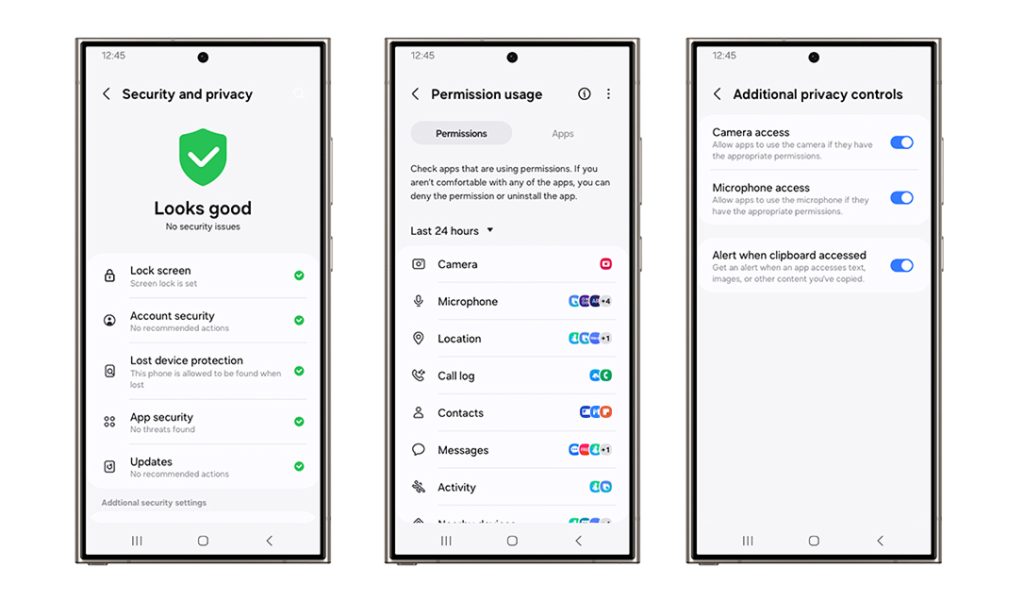
    This belief forms the basis of our Security & Privacy Dashboard. With the Dashboard, you have full control over your data, from determining who has access to it to managing how it is utilized. With our user-friendly interface, you have complete control over your app permissions, controls, and data-sharing features. This empowers you to personalize your experience and have full authority over your data.

    The Dashboard also allows you to see any data that may be at risk, intuitively showing you the safety status of security items.

    With just a simple touch, you have the power to effortlessly modify your settings and take control of any potential risks. The items are prioritized based on the functions that have the greatest potential to enhance your online safety. These include the lock screen, account security, lost device protection through Find My Phone, app security, and updates. These are readily available at the top, with easy-to-understand red, yellow, or green alerts that quickly highlight any problems and clearly indicate any security issues.

    Of course, we also do the work for you. Apps can continue tracking data for months, even when they are not in use – but Galaxy devices proactively remove permissions from apps that have not been used in a while, which can then be reinstated if you choose in the Dashboard.

    You can do this through Permission Manager and Permission Usage. Permission Manager easily shows you which apps can access your data – whether it’s your location, camera or microphone and in which context (for example, if it’s only when using the app). Permission Usage provides an easy way for you to see your recently used permissions – specifically, which apps have used a certain permission in the last 24 hours or seven days. And, to make things even easier, we also provide instant action prompts through the Dashboard to help make data decisions more intuitive and transparent. 

    It’s simple to access your Security & Privacy Dashboard. Just go to Settings and Security & Privacy, where you can review and adjust permissions as you see fit.

    You can also play with features to further enhance your device’s privacy, such as the Clipboard Access toggle. Turning this setting on (by going to Settings, then Privacy and looking for the toggle “Alert when clipboard accessed”) means that any time an app pastes something from your clipboard, you’ll get a notification. No more hidden activity.

    It’s never been easier to see and understand your data privacy with Galaxy. We put the control in your hands.

    Find My Mobile / Samsung Find:

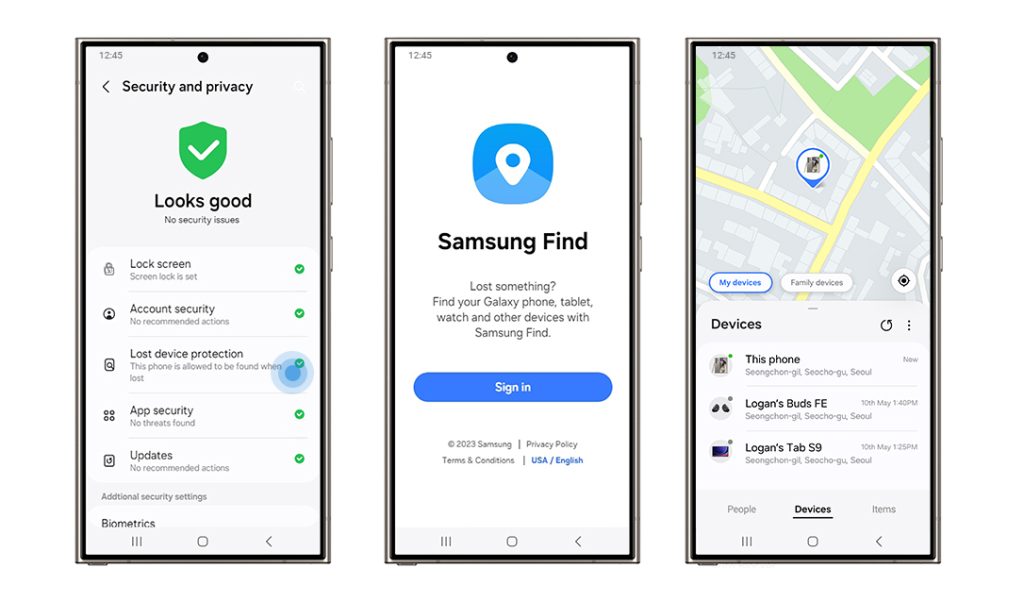
    It’s one of life’s inevitabilities – at some point, we all misplace our phones. But with Find My Mobile and Samsung Find, you no longer need to worry about your device’s personal information getting into the wrong hands. 

    Once Find My Mobile is enabled, Samsung Find allows you to locate, lock and even erase your device’s data to create an access lockdown. You can find your device even if it’s not connected to a mobile network, as long as it’s turned on. And through Samsung Find, it’s not only your Galaxy phone you can hunt down – but also your Galaxy Buds, tablets, watches and other devices.

    The additional options available make it easier than ever to find your devices. Users can invite family members in the Samsung Find app to view the location or activate ringing noises to help track down shared devices. To give yourself the best chance of locating lost devices with Samsung Find, you can extend the battery life by remotely turning on power saving mode.

    With Galaxy, you’re empowered to stay in complete control of your device – even when it’s not physically with you. 

    Advanced Intelligence settings: 

    As an industry-leading global manufacturer, Samsung is focused on enhancing the device experience through dedicated AI features while prioritizing privacy in the era of AI. Many of our Galaxy AI features use on-device data processing which means sensitive information stays with you and you alone. For those features that do require processing in the cloud or external servers, we make sure your data is protected with strict policies.

    In a world of AI-enhanced experiences, we know that not everyone wants to use cloud-based AI. For some, keeping data on-device is a priority. So, while innovation is important to us, we believe it’s just as, if not more important that we continue to empower our users with the choice over their own experience. 

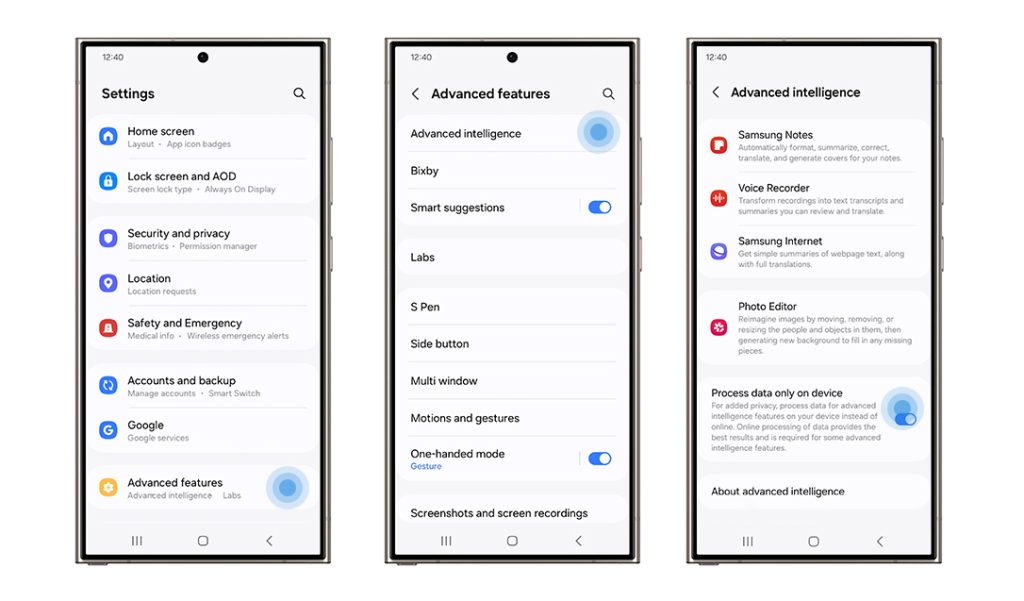
    That choice is yours with our Advanced Intelligence settings. Built into our Galaxy AI-supported devices, these settings let you decide how much you allow your data to enhance AI experiences and whether you want to allow online processing for full AI functionality.

    To access the settings, open Settings and select Advanced features, then Advanced intelligence. Here, you’ll see the option to “Process data only on device.”

    We’re still just as committed to providing our users with transparency, choice and control over their devices in this epic new world. It’s all up to you, and it’s never been easier to see and understand what happens to your data at all times. 

    Your privacy, secured with Galaxy.

    Join Galaxy AI-Volution Squad Today!

    Purchase our latest Galaxy innovation 

    To learn more about Galaxy AI, visit: https://www.samsung.com/my/galaxy-ai